
Adept
Document Dashboard
Explore the Adept Document Dashboard and learn how to quickly access important information about your documents. See how to view document relationships, versions, work-in-progress files, workflow status, audit history, CAD drawing information, transmittals, thumbnails, and more. You’ll also learn how the Information Source setting affects which document versions appear in your Adept searches.
5 min
Best For
All Users
Topics
Core Concepts UI Overview Searching Workflows Check In / Check Out Audit Trail
What You'll Learn
- Open, pin, and navigate the Document Dashboard
- View document relationships, versions, and work-in-progress files
- Track workflow status and document audit history
- Access CAD drawing details, transmittals, and thumbnails
- Understand how Information Source affects search results
ADEPT ACADEMY
Unlock this video
Complete this short form once for unlimited access to Adept Academy videos.
Video Transcript
Let's start by reviewing the commands near the status bar. Here you'll see buttons like Favorites, File Guides, and Inbox. These buttons let you quickly open those same windows.
Let's say you're not on the Home tab. Maybe you're on Search or Collaborate. If you need to open the Library Browser or your Favorites list to send a file, you can do that fast. Just run a search, or jump to Library Browser. Now you're there, but you're still on the Collaborate tab—so you can use the Send command right away.
Some commands can be reached from other areas in Adept.
When you're on the Home tab, there are many commands to choose from. One of the available commands you will find is called the Document Dashboard. This command opens a panel and displays information based on the selected documents. Selecting Document Dashboard near the bottom of the application will show a docked panel. Click anywhere else and the Document Dashboard closes.
If you click the Document Dashboard command on the ribbon instead, the Dashboard is opened and pinned automatically. [Pause] To remove it, just unpin the panel. To bring it back, use either command.
[Pause] Let's take a quick look at the Document Dashboard. When you select a document, you'll see tabs at the bottom of the application. These show things like where the document is used. If it's a child, you can see its parent. For example, if you need to check its relationship to other documents, click the Children tab.
The Versions tab shows the current version, any newer versions, and older saved ones—including work in progress versions. Those are documents currently in a workflow being reviewed or approved.
[Pause] If you use the mobile app and make markups in the field, you can view the status on the Mobile Markups tab.
[Pause] If you have a workflow set up for a Library and you check in a document, you can see its status and what step it's at in the workflow—including who needs to review it at each step. More on that later.
[Pause] You can also see every command or action performed on the document. That's the audit trail. For CAD documents, you'll get extra details like drawing info, sheet info, and more. Transmittals let you send documents or PDFs to customers, vendors, or other users. You'll use the Transmittal command, but it does require a plugin.
[Pause] The thumbnail shows a preview linked to your CAD drawing, so you can actually see it.
Your Document Dashboard [Pause] contains lots of useful information about your documents.
[Pause] Below that, you'll see more controls along the status bar, such as Information Source. Click it and a dialog box will appear. By default, it's set to Work in Progress.
You'll see it listed as "Information Source: Work in Progress." That means the document is either checked out of the library or in a workflow waiting for approval—so it's been modified.
Whenever you search, if the Information Source is set to Work in Progress, Adept searches all documents across every library you have access to and returns anything that matches your search criteria.
If you switch it to Library, then your search only finds documents with a current version checked into the library. You'll only see the latest checked-in versions. Anything checked out or waiting for approval won't appear because you chose Library instead of Work in Progress.
If you do switch it to Library, remember to switch it back to Work in Progress when you're done. That way your searches include all documents managed by Adept.
Let's say you're not on the Home tab. Maybe you're on Search or Collaborate. If you need to open the Library Browser or your Favorites list to send a file, you can do that fast. Just run a search, or jump to Library Browser. Now you're there, but you're still on the Collaborate tab—so you can use the Send command right away.
Some commands can be reached from other areas in Adept.
When you're on the Home tab, there are many commands to choose from. One of the available commands you will find is called the Document Dashboard. This command opens a panel and displays information based on the selected documents. Selecting Document Dashboard near the bottom of the application will show a docked panel. Click anywhere else and the Document Dashboard closes.
If you click the Document Dashboard command on the ribbon instead, the Dashboard is opened and pinned automatically. [Pause] To remove it, just unpin the panel. To bring it back, use either command.
[Pause] Let's take a quick look at the Document Dashboard. When you select a document, you'll see tabs at the bottom of the application. These show things like where the document is used. If it's a child, you can see its parent. For example, if you need to check its relationship to other documents, click the Children tab.
The Versions tab shows the current version, any newer versions, and older saved ones—including work in progress versions. Those are documents currently in a workflow being reviewed or approved.
[Pause] If you use the mobile app and make markups in the field, you can view the status on the Mobile Markups tab.
[Pause] If you have a workflow set up for a Library and you check in a document, you can see its status and what step it's at in the workflow—including who needs to review it at each step. More on that later.
[Pause] You can also see every command or action performed on the document. That's the audit trail. For CAD documents, you'll get extra details like drawing info, sheet info, and more. Transmittals let you send documents or PDFs to customers, vendors, or other users. You'll use the Transmittal command, but it does require a plugin.
[Pause] The thumbnail shows a preview linked to your CAD drawing, so you can actually see it.
Your Document Dashboard [Pause] contains lots of useful information about your documents.
[Pause] Below that, you'll see more controls along the status bar, such as Information Source. Click it and a dialog box will appear. By default, it's set to Work in Progress.
You'll see it listed as "Information Source: Work in Progress." That means the document is either checked out of the library or in a workflow waiting for approval—so it's been modified.
Whenever you search, if the Information Source is set to Work in Progress, Adept searches all documents across every library you have access to and returns anything that matches your search criteria.
If you switch it to Library, then your search only finds documents with a current version checked into the library. You'll only see the latest checked-in versions. Anything checked out or waiting for approval won't appear because you chose Library instead of Work in Progress.
If you do switch it to Library, remember to switch it back to Work in Progress when you're done. That way your searches include all documents managed by Adept.
KEEP LEARNING
Continue Learning
Explore more Adept Academy videos.
7 min
Configuring CAD Data Extractions
Watch Video →

8 min
Importing Active Directory Groups
Watch Video →
7 min
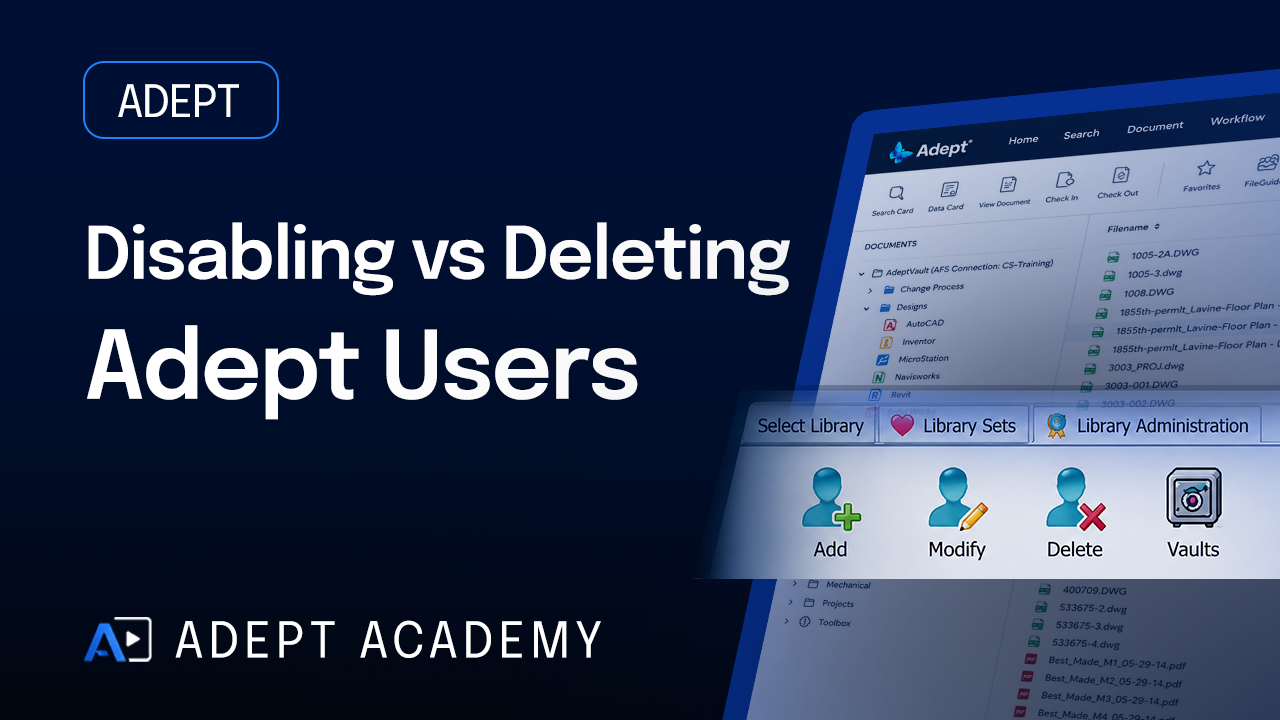
Disabling vs Deleting Adept Users
Watch Video →
3 min
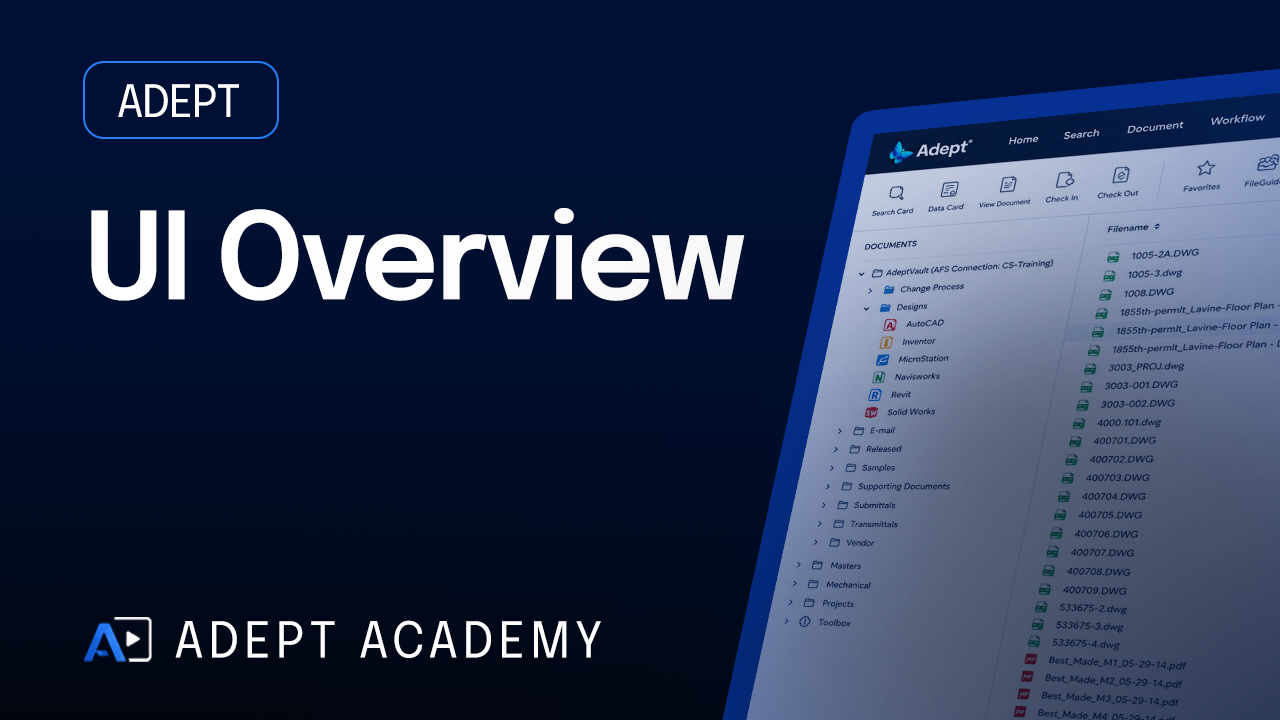
Adept Desktop Client UI Overview
Watch Video →
9 min
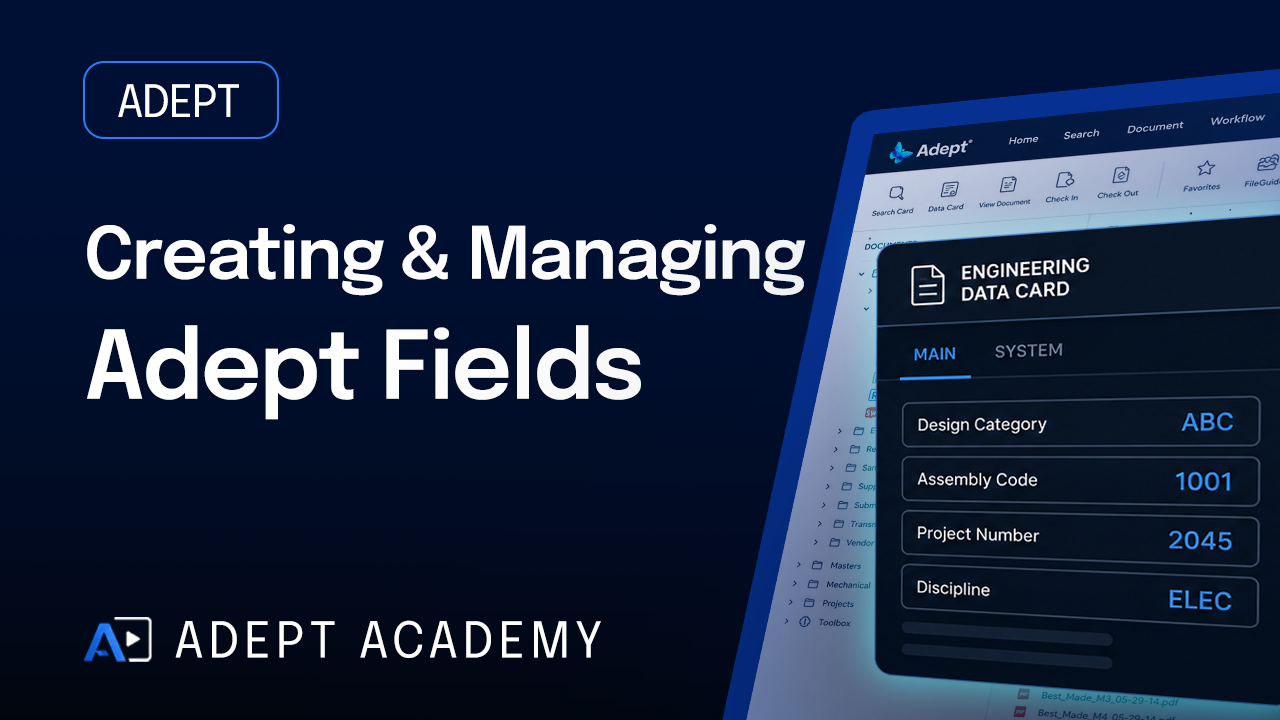
Creating and Managing Adept Fields
Watch Video →
9 min
Adept Pre-Installation Checklist Walkthrough
Watch Video →
9 min
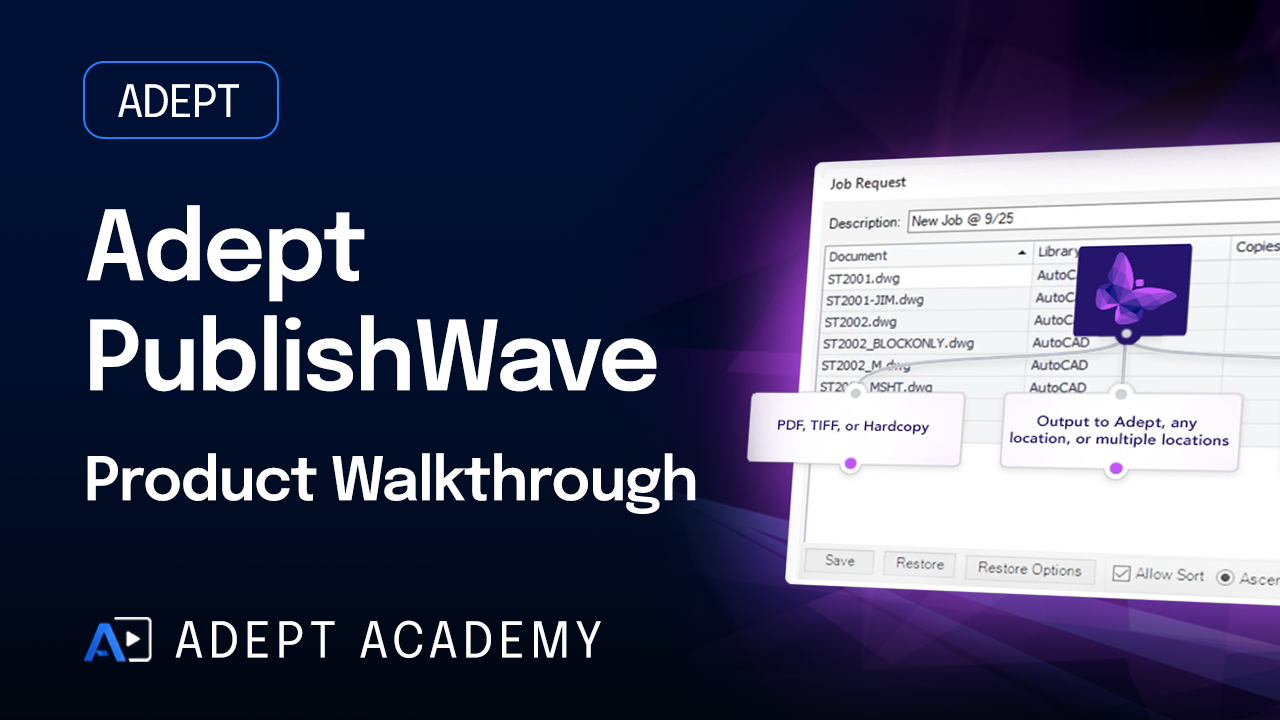
Adept PublishWave Product Overview
Watch Video →
9 min
Adept Server Deployment Requirements Guide
Watch Video →
7 min